Insecure Storage in Android
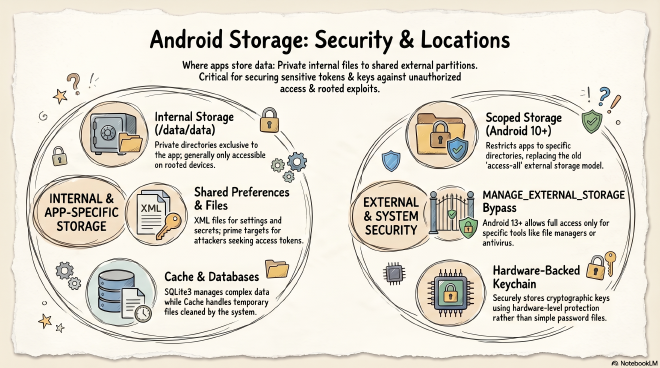
Insecure Storage in Android #
Insecure storage is still one of the easiest ways to recover sensitive data from an Android app during a pentest. Even when an app has strong network protections, it may still expose tokens, cached responses, credentials, or personal data locally. This post is a quick guide to the main Android storage locations and what they mean from a security testing perspective.
Shared Preferences #
A key-value XML file that stores user preferences such as dark mode or light mode. They are also often used to store access tokens or other kinds of secrets. In itself, that is not an issue, but it makes shared preferences a very interesting target for stealing or overwriting internal files.
Databases #
Many apps use SQLite3 to store more complex data structures in internal storage.
Created by the method openOrCreateDatabase(). In practice, this is where a pentester might find cached API responses, tokens, user profile data, or even plaintext credentials if the app stores them carelessly.
Cache Files #
Used to store temporary files, and it gets cleaned automatically by the system when storage runs low. It can be accessed using getCacheDir(), which resolves to the application’s internal folder. From a pentesting perspective, cache files are worth checking because developers sometimes leave sensitive data there temporarily, such as downloaded documents, images, tokens, or session artifacts, assuming the system will remove them later.
Internal Storage #
- The private directory of an app located in the
/data/data/<apk-path>exclusive to the application and not shared with other devices
/data/data is accessible only on rooted devices.
External Storage #
This used to be the SD card but now lives in internal flash storage. Permissions are much more limited nowadays, and it contains shared data such as photos and downloads. It is mounted on the /sdcard or /storage/emulated/0 partition. In the past, external storage was considered insecure because every app could access all the data on it. It was also easy to physically remove the SD card and steal its contents, but now we have scoped storage from Android 10 onward. Scoped storage now restricts applications to their own app-specific directory on external storage, for example /sdcard/Android/data/owasp.sat.agoat/, which other apps cannot access even if they have the READ_EXTERNAL_STORAGE permission.
Scoped storage bypass: Apps can still use the MANAGE_EXTERNAL_STORAGE permission on Android 13+ to request access to all files on external storage. Google Play has extremely strict policies on this. Unless your app is a file manager, antivirus, or backup tool, Google will likely reject it.
Android Keystore #
Stores cryptographic keys and uses hardware-backed security. It does not store passwords, only the keys.
Files Directory #
This is created when an application stores files in internal storage by using the openFileOutput() method, and you can read those files using getFilesDir().
Summary #
Android applications utilize several distinct methods for storing data, each offering varying levels of privacy and security. Internal storage options like Shared Preferences and SQLite databases house private app details, while the Files and Cache directories manage temporary or structured content. While external storage was historically vulnerable to unauthorized access, modern versions of the operating system now implement scoped storage to isolate application data.
For highly sensitive information, the Android Keystore provides a specialized environment that secures cryptographic keys through hardware-based protection. Ultimately, understanding these diverse storage locations is essential for protecting user secrets and maintaining system integrity on mobile devices.